
Keyboard, mouse and controller setup
Moonlighter 2 Mouse and Keyboard Controls
Moonlighter 2 mouse and keyboard players can see the active PC bindings in Settings → Controls or Input, while controller users can follow the current button prompts. Test movement, dodge, primary and special attacks, interaction, backpack and pause before a difficult run.
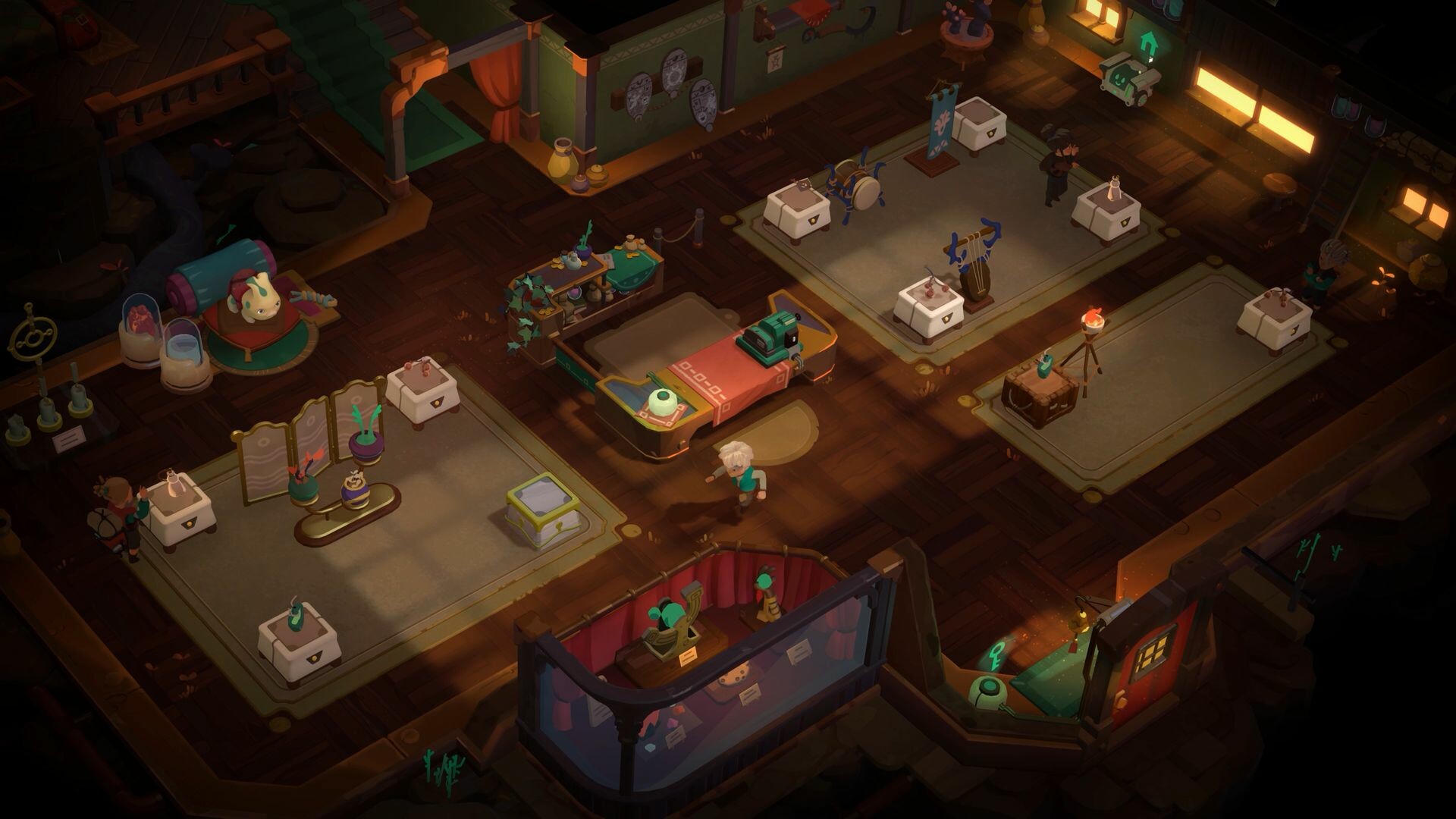
Action checklist
Moonlighter 2 controls to test before a run
The exact key or button follows the active layout shown in Settings. Use this checklist to make sure every important action works with your chosen input device.
Build a comfortable layout
Set up Moonlighter 2 controls in a useful order
- Start with movement and dodge so you can reposition without reaching across the keyboard or controller.
- Place primary and special attacks where you can alternate them without losing movement control.
- Test interaction, backpack and shop menus; combat bindings alone do not cover the merchant half of the game.
- Finish with pause, confirm and back, then play one low-risk room before committing to a long run.
Keyboard and mouse
Keep dodge and special attack easy to reach while moving. Test mouse clicks, menu navigation and backpack actions as well as combat.
Controller
Connect one controller before launch and follow the prompts shown on screen. Check that the same device can navigate both combat and shop menus.
Input troubleshooting
Fix common Moonlighter 2 control problems
Start with the active device and in-game prompts, then change one setting and test again.
Controller not detected
Check operating-system or Steam detection, reconnect before launch and retest one Steam Input state at a time.
Prompts do not match
Disconnect extra input devices, restart with only the intended controller and test one Steam Input setting at a time.
A binding no longer works
Open the Controls menu, remove any duplicate binding, restore defaults if needed and add your preferred changes back one at a time.
Use the free PC demo and requirements page to test your device before buying, check the platform list for your version, and compare weapon primary and special mechanics before arranging combat bindings.
Quick answers
Moonlighter 2 mouse and keyboard FAQ
Does Moonlighter 2 support mouse and keyboard on PC?
Yes. Open Settings and choose Controls or Input to see the active keyboard and mouse bindings for your installation.
How do I remap Moonlighter 2 controls?
If the Controls menu lets you edit a binding, select that action and enter the new input. Test it in the shop before changing another action.
How should I set up a controller on PC?
Connect one controller before launch, follow the button prompts shown by the game and test movement, dodge, attacks and menus before entering a difficult run.
What should I try if my controller is not detected?
First confirm that Windows or Steam sees the controller. Reconnect it before launch, disconnect extra input devices and test with Steam Input enabled and disabled.
Sources
Moonlighter 2 controls references
Valve / Steam
official11 bit studios
officialPCGamingWiki
technicalSet movement and combat first, test shop and backpack actions next, and use the active in-game prompts whenever you switch between keyboard, mouse and controller.